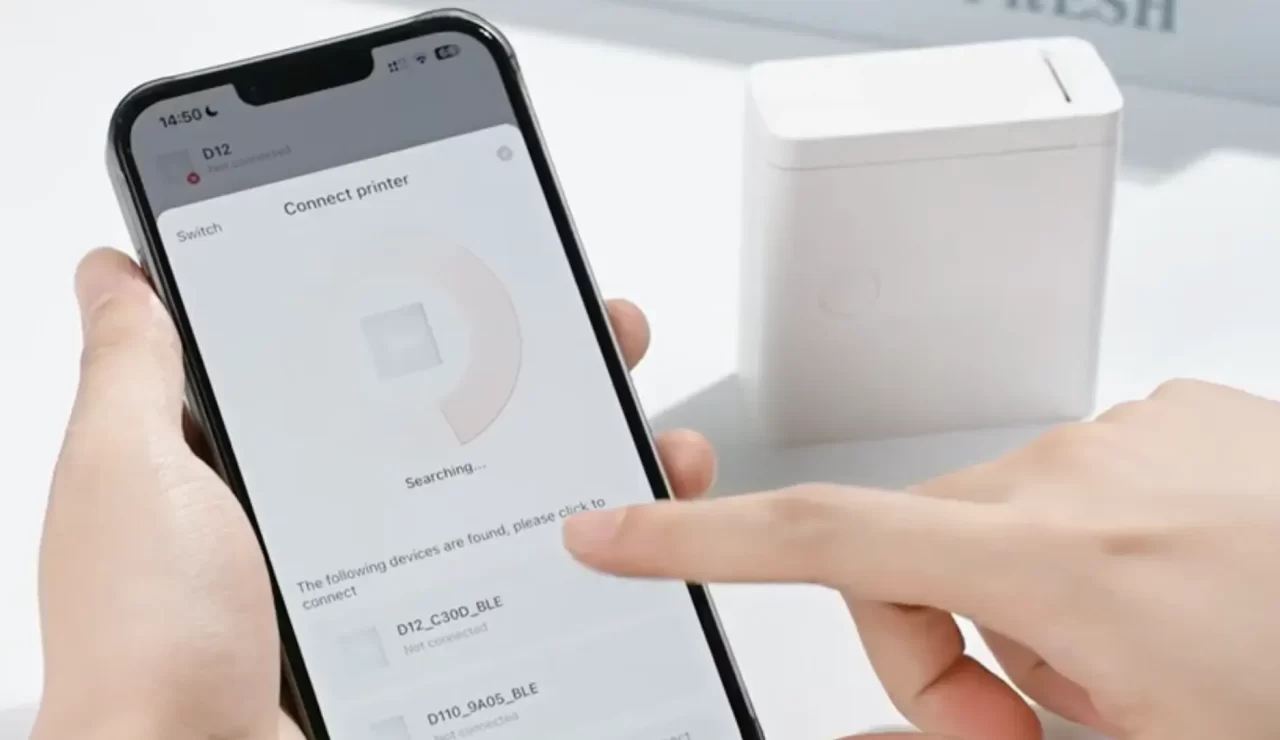
Connecting a mini thermal printer to a phone should feel simple — pair, print, done. Yet many users run into frustrating problems: the device shows in Bluetooth settings but won’t connect in the app, pairing succeeds but prints fail, or the printer worked yesterday and stops after a phone update.
As a leading thermal printer manufacturer, Aiyin can tell that the compatibility of portable thermal printers is rarely random; it’s the result of multiple layers (hardware, OS, firmware, app) that must interoperate. This guide explains the common failure points and gives practical steps for users and product teams to reduce connection headaches.
Phone Hardware Issues: The Invisible Limits
Phones have their own different ways to achieve compatibility with a mini thermal printer wirelessly.
- Bluetooth variants: There are two common modes — Classic (BR/EDR) and BLE (Bluetooth Low Energy). Some mini thermal printer models use BLE for power efficiency; older phones or some low-end chipsets may only offer limited BLE peripheral support. If an app expects BLE but the phone’s stack is incomplete, discovery or data transfer can fail.
- Chipset quirks: Different SoC vendors (Qualcomm, MediaTek, Unisoc) have different Bluetooth stacks and driver bugs. A model that works on one brand may behave inconsistently on another.
- USB/OTG support: A few compact printers support USB-OTG to connect directly to a phone. If the phone doesn’t support OTG or requires specific USB modes, the printer won’t be recognized.
User tip: Check the printer’s documentation for the required Bluetooth mode (BLE vs Classic) and verify your phone model supports that mode.
Operating System Barriers: Permissions and Policies
Modern mobile OSes enforce increasingly strict permissions and background behavior:
- Android fragmentation: Android manufacturers customize OS builds (MIUI, EMUI, ColorOS), and those customizations can block some background Bluetooth scans or aggressively kill apps that try to maintain persistent connections. Also, Android 6+ introduced runtime permissions; apps must request location permission to complete BLE scans in many versions.
- iOS restrictions: Apple controls Bluetooth access tightly. Some accessory types require MFi (Made for iPhone) certification or specific CoreBluetooth patterns. iOS also suspends apps in the background differently from Android, which affects long-lived connections.
User tip: Ensure the printer app has all required permissions (Bluetooth, Location on Android), and disable aggressive battery optimizations for that app.
App-level Problems: SDKs, Updates, and Region Limits
The companion app is the glue between phones and mini thermal printers — when it’s broken, connectivity breaks.
- Outdated SDKs: If an app uses an old Bluetooth or platform SDK, it may fail on newer OS versions. Apps must be actively maintained to track OS permission changes and API deprecations.
- Region or model gating: Some apps publish region-limited builds (or lock features to specific phone models), leading to inconsistent behavior for global users.
- Poor UX around pairing: Users often try to pair via system settings first; some printers require pairing only through the app. The app must guide users clearly.
User tip: Use the latest app version from the official store, and consult the vendor’s compatibility list before purchase.
Firmware and Protocol Mismatches
Even when the phone, OS, and app are fine, the mini thermal printer’s firmware and the app’s communication protocol must match.
- Protocol versions: Printers expose services and characteristics (in BLE) or serial protocols (in Classic). If firmware updates changed UUIDs or packet framing, older apps won’t recognize the device.
- Private vs standard protocols: Devices using proprietary protocols need matching app-side drivers; generic drivers (or third-party printing apps) won’t work unless they support the vendor’s protocol or a standard like ESC/POS.
Developer tip: Maintain backward-compatible firmware or publish protocol docs and an SDK so third-party apps can integrate without fragile workarounds.
Common Failure Scenarios and How to Resolve Them
- Device visible but app can’t connect: Ensure the app requested Bluetooth/Location permissions; try unpairing at the system level and pair again inside the app if required.
- Paired but printing fails: Check the app’s selected printer model and communication mode (BLE vs Classic). Update firmware and app to the latest releases.
- Works on one phone, not another: Verify OS versions, check for vendor-specific Bluetooth bugs, and test with a different app to isolate whether the problem is app- or device-related.
Quick user checklist: restart phone & printer; enable app permissions; disable battery optimizations; update app & printer firmware; try a different phone to isolate the cause.

What Manufacturers and App Developers Should Do
For reliable experience across phones as many as possible, vendors should:
- Publish a compatibility matrix listing OS versions and phone models tested.
- Provide an SDK and sample apps for iOS and Android that abstract Bluetooth/USB complexity.
- Use standard or well-documented protocols when feasible (e.g., ESC/POS over serial profiles) to ease third-party integrations.
- Handle permissions and errors in the app with step-by-step pairing guidance.
- Test on diverse devices and custom OS skins, not just flagship phones.
These practices significantly reduce support tickets and increase first-time success rates for mini thermal printer users.
Final Thoughts
When a mini thermal printer fails to connect, don’t blame a single layer immediately. Connectivity depends on the entire stack: phone hardware → OS behavior → app implementation → printer firmware/protocol. For users, following a methodical checklist (permissions, updates, reboots, alternate phones) will resolve most issues. For manufacturers, robust SDKs, clear documentation, and proactive testing across real-world devices are the keys to a frictionless pairing experience.
About Aiyin
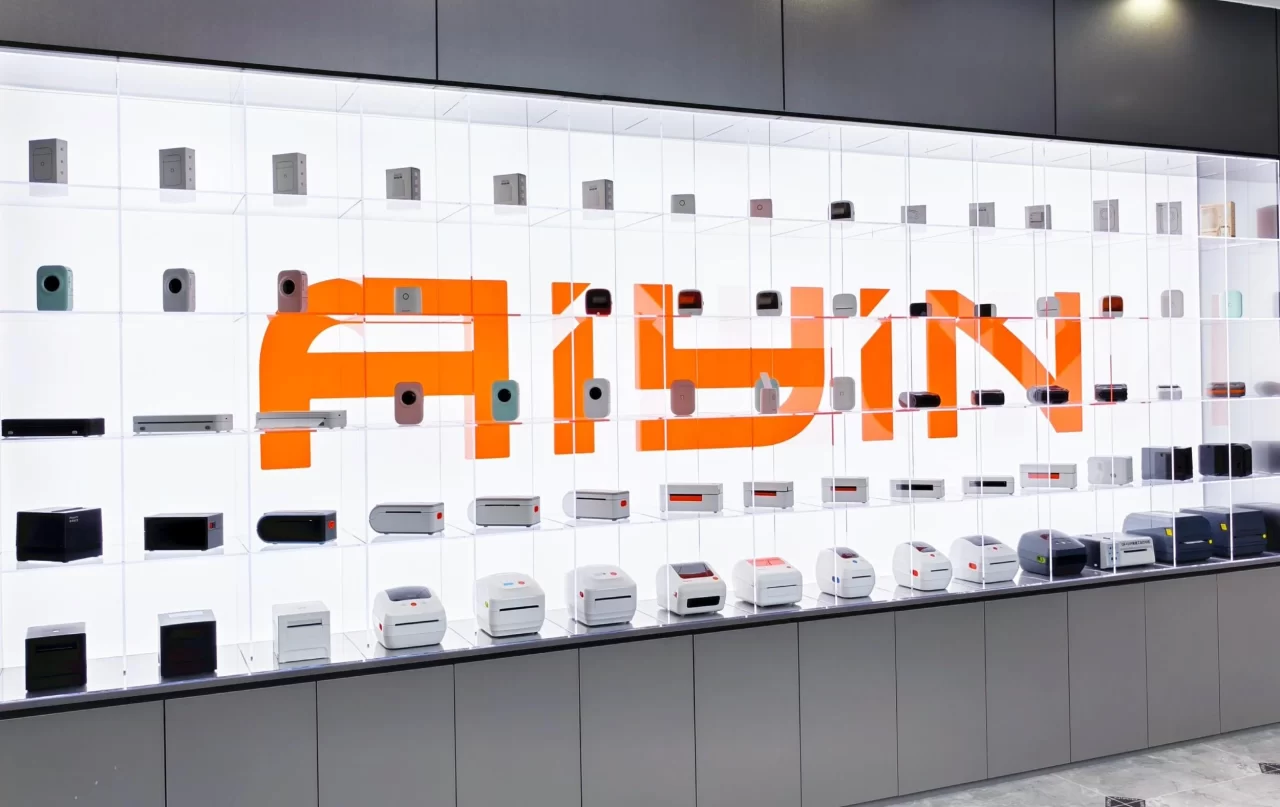
Aiyin is a leading thermal printer manufacturer whose products meet global business demands. Our product line includes wholesale mini thermal printers, shipping label printers, receipt printers, and thermal transfer printers designed with precision and reliability in mind. With a complete SOP system built to international standards, every unit is produced under strict quality control to ensure stable performance and consistent output. Aiyin stands as your trusted partner, who can offer custom mini thermal printer solutions for scalable, efficient, and dependable printing solutions.